NEW FEATURES
New Workspace Switching
Why we built this
Clients who administer several firms asked to move between them in a single sitting, so we have put the switch in the profile menu.
How it works
Your profile menu lists every workspace you belong to. Select one and you arrive there directly, with your existing session carried across, so there is no second email code and no fresh Microsoft sign-in. If you reach the sign-in page while already signed in, the workspace picker appears in place of the email prompt.
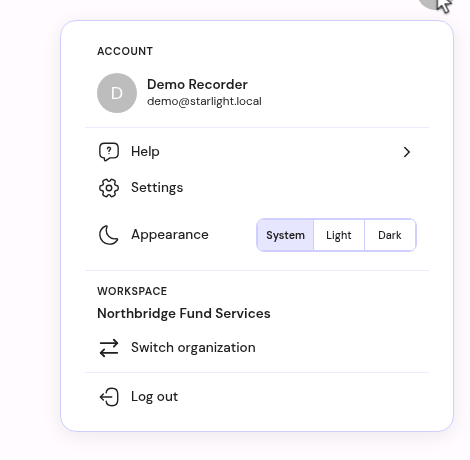
The profile menu names your current workspace and carries the switch to any other workspace you belong to.
What to do
Open your profile menu to see the workspaces available to you.
New Invitation Status
Why we built this
Administrators want to know where an invitation stands before chasing a colleague about it, so the stage of each invitation now appears in the list itself.
How it works
The invitations list shows whether an invitation is pending, accepted, or expired, so you can see who still needs to join without opening each one. Invitations behave the same way regardless of how your firm signs in.
What to do
Open your team settings and review the invitations list.
New Meeting Import
Why we built this
Clients hold meetings that finish before Starlight is invited to the call, and they asked to bring those into the platform too, so we have opened up importing.
How it works
Import sits beside the meetings calendar. Choose a transcript exported from the meeting and it comes in as a meeting you can generate minutes from, with speakers and timings read from the file. Clean exports arrive immediately; other documents are read for you and take about a minute. JSON, DOCX, PDF and TXT files are all accepted.
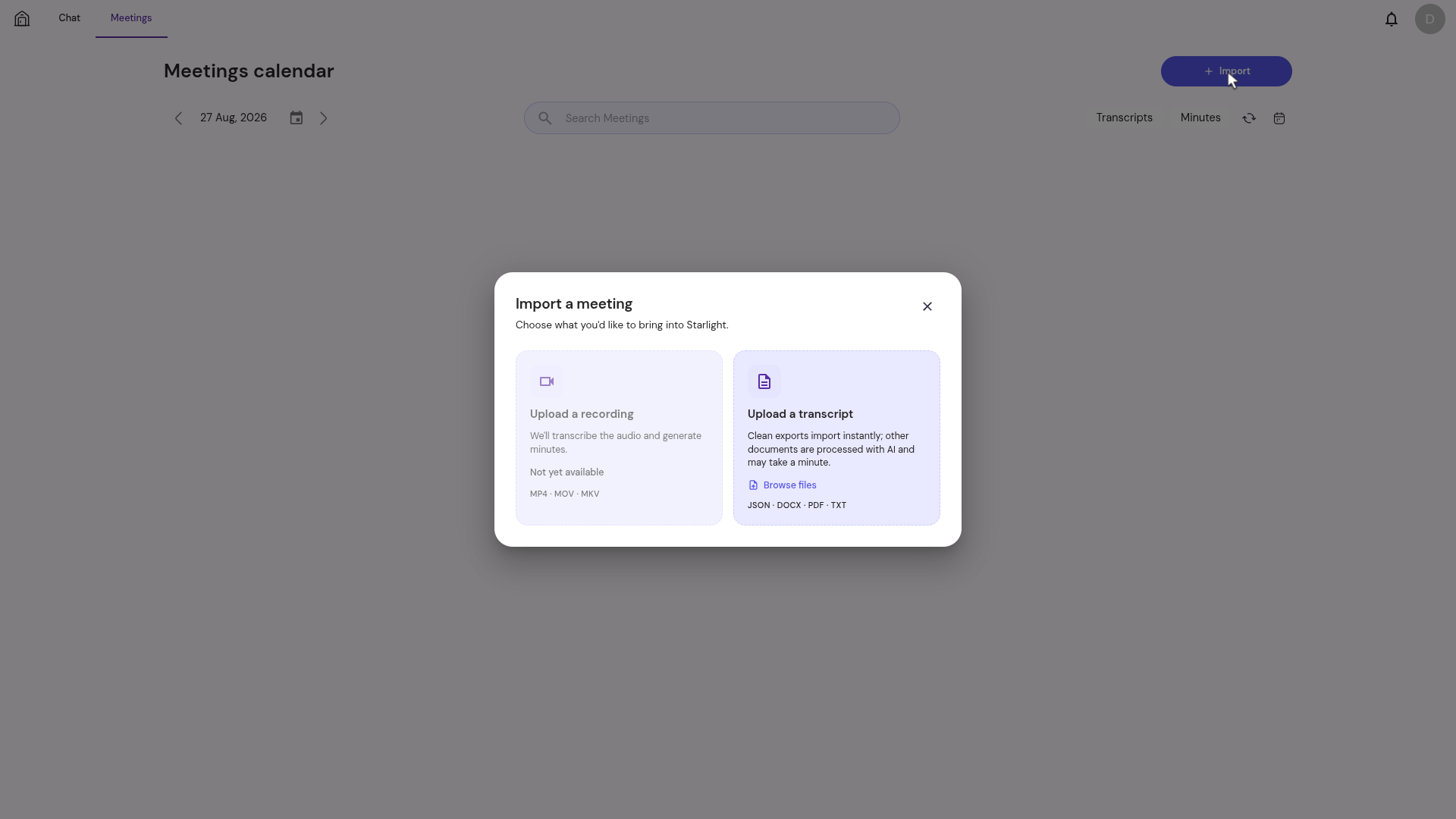
Import opens from the meetings calendar, where a transcript exported from the meeting can be brought straight in.
What to do
Open the meetings calendar and select Import.
IMPROVEMENTS
Knowledge Base Selection Shows Your Choices First
Why we updated this
Clients working with long lists of knowledge bases asked to see what they had already selected without searching for it by name.
How it works now
Every selector that lets you pick knowledge bases, agents or document types puts your current selections at the top of the list, each with a tick beside it. Searching keeps those selections in view, so you can confirm what is attached before generating minutes.
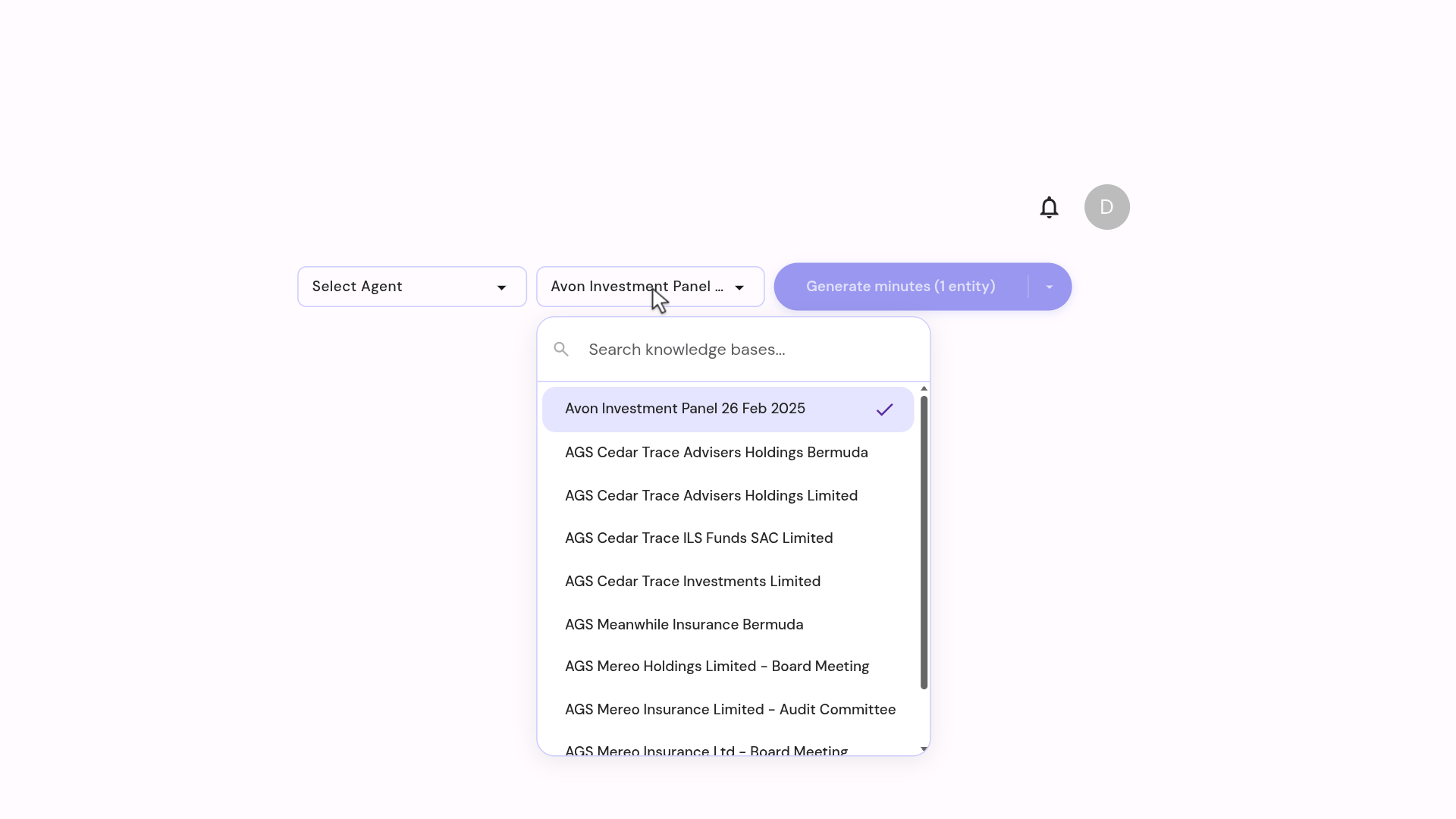
The attached knowledge base sits at the top of the list with a tick, and stays above the other matches while searching.
What to do
No action needed — open any selector to see your current choices first.
Save Confirmation in the Minutes Editor
Why we updated this
Clients editing minutes over a long session asked for visible confirmation that their work is being kept as they type.
How it works now
The minutes editor shows a save indicator while you type and confirms once your changes are stored, so you can leave the document knowing where your edits stand.
What to do
No action needed — the indicator appears as you edit.
Agenda Extraction Across More Document Layouts
Why we updated this
Agendas arrive in a wide range of house formats, and clients asked us to cover more of them, so we have widened the range of layouts Starlight reads an agenda from.
How it works now
Agenda items are picked up from tables and from numbered or headed lists, including agendas whose table cells span several columns. Numbering and sub-items carry through to the minutes in the order the agenda sets out.
What to do
No action needed — this applies to agendas as they are uploaded.
FIXES
Fixes and Refinements
In this release
- Outline numbering keeps its house spacing through the whole document in Word exports.
- Signature blocks keep their signatories when minutes are downloaded.
- Minutes edited on a colleague's behalf save against the meeting owner, so the version history stays in one place.
- Agenda titles that are already numbered keep their sub-items on separate lines.
- Meetings imported from a colleague's calendar carry that colleague's details through the import.
- Analytics views read correctly on smaller screens.
What to do
No action needed.