NEW FEATURES
Fix Speaker Names in Shared-Device Boardrooms
Why we updated this
When a boardroom uses a single shared device — one microphone in the room capturing several people — correcting who said what after the meeting was awkward. Renaming one speaker could affect others, and there was no way to clear a single attribution and start again without touching the rest of the room.
How it works now
Shared-device rooms now have dedicated controls. Each speaker in the room can be named, cleared, or reassigned on its own, without disturbing anyone else. Corrections flow through the transcript cleanly and the room stays tidy as the meeting progresses.
Shared-device room controls let each speaker be named, cleared, or reassigned independently.
What to do
No action needed — the new controls appear in the meeting sidebar whenever a shared-device room is detected.
IMPROVEMENTS
More Accurate Speaker Names End-to-End
Why we updated this
On busy calls — particularly meetings with overlapping speakers — the same person could occasionally end up labelled inconsistently across the transcript. Manual corrections sometimes failed to stick, leaving the wrong name (or no name) against a participant in the final minutes.
How it works now
Speaker names are now consistent from the live transcript through to the exported minutes. Small differences in how a speaker is identified during the call are reconciled automatically, and a more precise correction can no longer be overwritten by a broader one. The result: tighter speaker attribution on every call, especially busy ones.
What to do
No action needed — existing meetings continue to work as before; new meetings will show noticeably tighter speaker attribution.
Explore Minutes Versions
Why we updated this
Meetings that are regenerated several times accumulate multiple minutes drafts — each with different wording, structure, or level of detail. There was no straightforward way to browse those revisions, compare changes, or return to an earlier draft you preferred.
How it works now
The minutes editor now includes a version history control that lists every saved revision for a meeting. You can switch between versions instantly, see when each was generated, and review earlier drafts without leaving the document. Meetings still open on the latest version by default, and the address bar stays in sync with whichever version you are viewing. If a regeneration is interrupted, the meeting recovers cleanly rather than leaving a half-finished draft behind.
The minutes editor now keeps version history visible, so teams can review earlier drafts without leaving the document.
What to do
Open any meeting with multiple minutes versions and use the version control in the editor to browse earlier drafts. No setup required.
Higher-Quality Minutes Generation
Why we updated this
Generated minutes occasionally dropped supporting quotes from the underlying discussion, and the formatting could be uneven across sections. Shorter — but perfectly valid — sections were sometimes flagged as too brief and held back.
How it works now
Generated minutes now hold on to their supporting evidence more reliably and produce a cleaner, more uniform document on the page and in the Word export. The length check is more forgiving of genuinely concise sections, so a short item is no longer mistaken for a truncated one.
What to do
No action needed — these improvements apply automatically to all new minutes generations.
Easier Cross-User Calendar Viewing
Why we updated this
Viewing another user's calendar required an explicit one-off permission. In practice this slowed down day-to-day administration: managers who simply wanted to see what a colleague was covering had to wait for a permission to be granted before they could even look.
How it works now
Calendar visibility now follows the normal role and team boundaries already in place across the platform — so within your usual scope, you can see colleagues' calendars without an extra approval step. Calendars that have been unlinked outside Starlight are handled gracefully and no longer block the rest of the page from loading.
Organisation users can move from the team view into a colleague's calendar within their normal access scope.
What to do
No action needed. If a calendar view was previously blocked solely by the per-user permission, it will now load directly inside your normal scope.
Calmer Editor Surface
Why we updated this
Floating menus and overlay toolbars in the minutes editor added visual noise on top of long documents, especially when reviewing minutes side-by-side with the transcript or board pack.
How it works now
Duplicate floating menus have been removed and the editing surface stays focused on the document itself. The dashboard's icon set has also been refreshed for a more cohesive look across navigation and content.
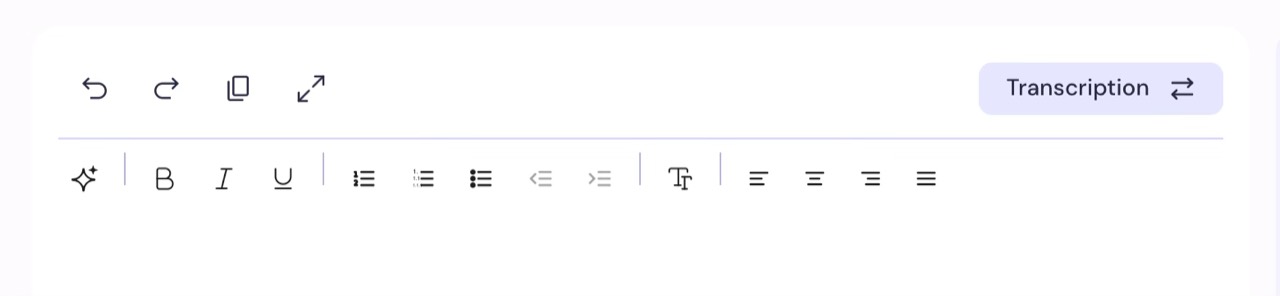
The duplicated bubble ribbon has been removed from the minutes page, leaving a single cleaner toolbar above the editor.
What to do
No action needed — the cleaner editor and updated icons are the new default everywhere.
FIXES
Shared-Device Confirmations Survive Refreshes
Why we updated this
The shared-device confirmation chosen at the start of a meeting could be lost if the page was refreshed, forcing the host to set it again partway through the session.
How it works now
The shared-device confirmation is now remembered across page reloads and tab switches, so a meeting set up correctly at the start stays set up.
What to do
No action needed.
Graceful Handling of Unlinked Calendars
Why we updated this
If a user's Microsoft 365 calendar was disconnected outside Starlight — for example, by an admin revoking the connection — the calendar view could fail to load instead of showing an empty state.
How it works now
Unlinked or revoked calendars now show a clear empty state with a reconnect option, rather than blocking the page with an error.
What to do
No action needed — if your calendar shows as unlinked, reconnect it from account settings.
Faster, More Reliable Startup After Each Release
Why we updated this
In the first few seconds after a new release went live, occasional one-off errors could appear with little context for whether the system was about to recover on its own.
How it works now
The platform now starts up faster after each release, and the rare transient errors that appear in the warm-up window resolve themselves cleanly with a clear, retry-friendly signal instead of an opaque failure.
What to do
No action needed — startup is faster and recovery from transient hiccups is cleaner.
Knowledge-Base Search Recovers Automatically
Why we updated this
When the credentials connecting Starlight to a knowledge-base data source were rotated, search could return stale results until someone manually triggered a refresh. Searches that targeted a single document also occasionally returned a broader set of results than requested.
How it works now
The knowledge-base search now picks up rotated credentials automatically and recovers from a temporary data source failure on its own. Searches scoped to a specific document return exactly the requested results, with no broader spill-over.
What to do
No action needed — search keeps working through credential rotations without operator intervention.
Consistent Speaker Names Across the Transcript History
Why we updated this
Across the full transcript history of a meeting, the same person could appear under slightly different speaker labels — making it harder to apply a single corrected name to everything they said in the call.
How it works now
Speaker labels are now consistent across the entire transcript, so renaming a person once applies cleanly to every segment they spoke in — both new meetings and re-processed ones.
What to do
No action needed — speaker attribution accuracy improves automatically across new and re-processed transcripts.